Studio
Studio is the local browser editor. Start it as described in Install
and open the exact http://127.0.0.1:PORT address it prints; localhost is
rejected. Ctrl-C in the terminal stops it.
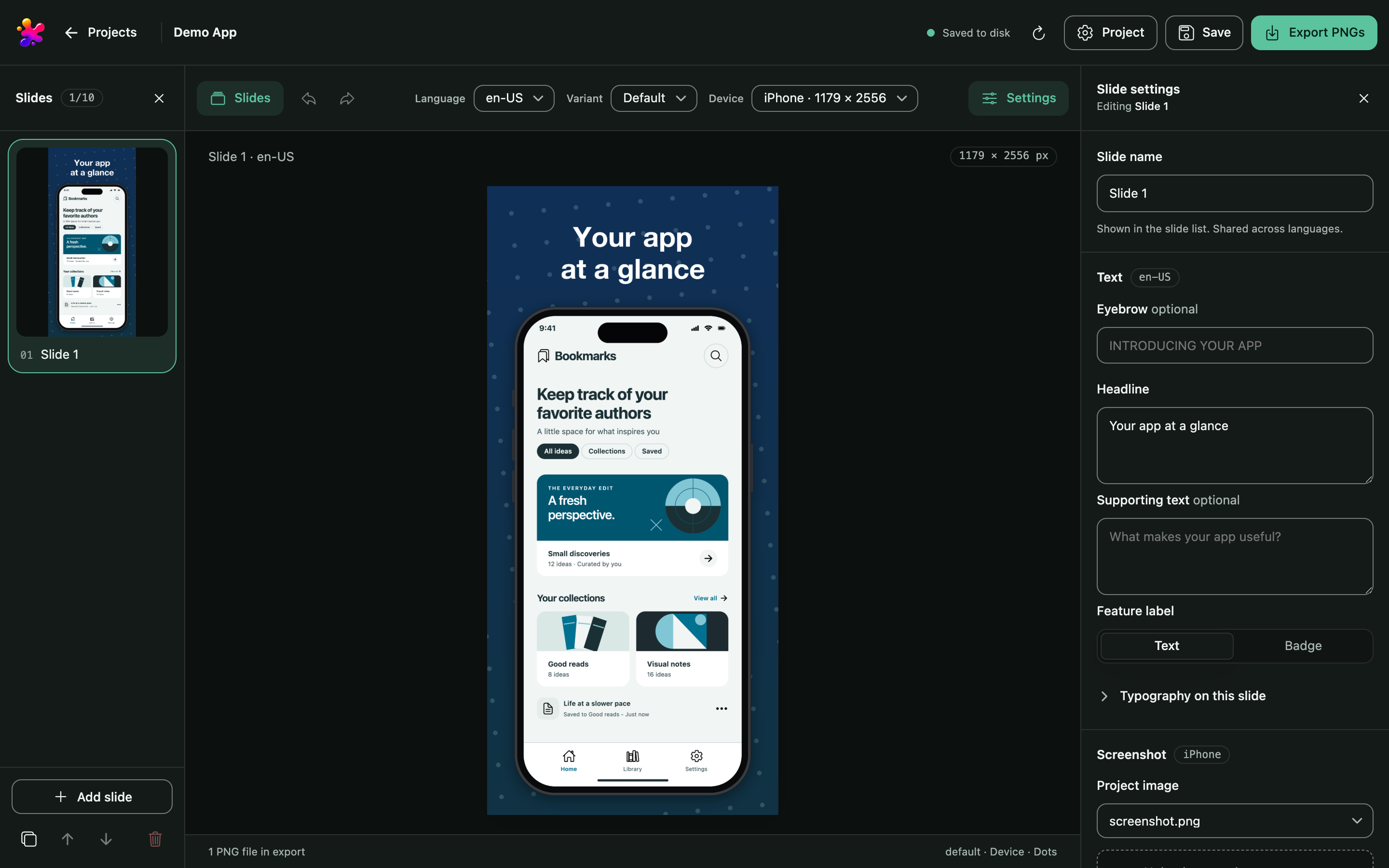
The editor has three areas: the Slides panel on the left, the preview in the middle and Slide settings on the right. The Project button in the top bar opens project settings with the tabs General, Layout, Typography, Colors, Pattern and Advanced. On small screens, the Slides and Settings buttons open the side panels.
Make screenshots
- On the start screen, choose New project, pick iPhone, iPad or Mac and name it.
- Upload a screenshot in Slide settings → Screenshot, or drop it onto the preview. Use a static PNG, JPEG or WebP in sRGB, up to 16 MiB. One screenshot per platform serves all of that platform's sizes.
- Write the headline, supporting text and feature label in Slide settings, and adjust the slide's appearance below them. Add, duplicate, reorder or delete slides in the Slides panel (1–10 per project).
- In Project → General, add languages, variants, and platforms and sizes. Each slide needs a screenshot for every platform you export.
- Above the preview, Language, Variant and Size choose what you see and edit. Export renders every combination.
- Save writes
project.json. Export PNGs renders the current draft, including unsaved edits, and shows the output folder. Export does not save.
Preview and export use the same renderer. While an edit renders, the previous image stays visible; text that does not fit is reported as an error, not clipped.
Shared settings and slide overrides
Appearance resolves as built-in values → project defaults → variant → slide. A slide's appearance applies to all its languages and variants; Reset removes the slide's override. Text edits apply to the selected language only.
Reuse colors through palettes in Project → Colors, and spacing through layout templates in Project → Layout. Choosing a starter palette copies it into the project's palettes. Editing a palette or template updates the slides linked to it and keeps their local overrides; deleting it keeps its values where it was linked. Spacing and font sizes are stored as percentages; the % | px switch shows them in pixels of the previewed size. Fonts uploaded in Project → Typography travel with the project.
Project → Advanced → Project JSON edits the whole configuration. Apply JSON before Save, Export or Undo/Redo; text that fails validation is kept. The project format explains every field.
Drafts, files and recovery
Edits are a draft in the browser until Save. Reloading or closing the tab discards unsaved edits; the browser asks first. Undo/Redo holds up to 50 edits and is cleared on reload. Undo never removes uploaded files or exports.
The Studio folder holds projects/ and trash/; change it in Settings on the
start screen. Studio picks it in this order: --home DIR, JAMSHOOT_HOME, the
saved setting, --fallback-home DIR, then ~/JamShoot. ./studio falls back to
the cloned folder, so its projects live in ./projects. JAMSHOOT_SETTINGS moves
the settings file.
- Each project is a folder with
project.jsonand itsassets/. Download .zip on its card packs it with its screenshots and fonts, without exports; Import .zip… or dropping the file on the start screen adds it back. - Remove moves a project to
trash/; move the folder back intoprojects/to restore it. jamshoot studio path/to/project.jsonalso opens that project in place for this run. Removing it from the list only forgets it.- Exports go to the project's
exports/export, thenexport-2,export-3and so on.--out DIRsets the folder for a project opened by path.
exports/export/
  manifest.json
  default/en-US/appstore.iphone.1179x2556/01-overview.png
- If Save reports that the file changed on disk, copy your draft's JSON first, inspect the file, then reload on purpose: reloading replaces the draft.
Studio is a single-user server bound to 127.0.0.1. Its API checks Host, Origin
and a per-run token; it is not a hosted service.